# TTS Buddy Documentation — Full Content
> Source: https://ttsbuddy.com/docs/
> Generated: 2026-02-27
---
## Text-to-Speech
URL: https://ttsbuddy.com/docs/features/text-to-speech
Markdown: https://ttsbuddy.com/docs/features/text-to-speech.md
# Text-to-Speech
TTS Buddy uses advanced neural text-to-speech technology to convert your text into natural-sounding audio in 10 languages with 58 voices.
## How It Works
When you submit text for conversion:
1. **Text preprocessing** — Your text is analyzed and optimized for speech. This includes handling abbreviations, numbers, and special formatting.
2. **AI sanitization** — Complex formatting (tables, bullet lists, code blocks) is automatically restructured by AI for better narration.
3. **Speech synthesis** — The processed text is sent to the neural TTS engine, which generates high-quality audio using advanced voice models.
4. **Audio delivery** — Your audio file is ready for streaming or download.
## Input Options
### Direct Text Input
Paste or type text directly into the dashboard. Supports up to **500,000 characters** per request — enough for a full-length novel chapter or comprehensive study guide.
### Chrome Extension
Use the [Chrome extension](/getting-started/chrome-extension) to convert any webpage to audio, voice chat with pages, or copy content to clean Markdown — all with one click.
### PDF Upload
Upload PDF documents and TTS Buddy will extract the text content automatically. Works with:
- Text-based PDFs (standard documents)
- Academic papers
- eBooks and study materials
See [PDF Support](/features/pdf-support) for details.
## AI Content Sanitization
TTS Buddy uses AI to preprocess your text for optimal narration. This means:
| Input | What TTS Buddy Does |
|-------|---------------------|
| Markdown tables | Converts to natural spoken descriptions |
| Bullet lists | Reads as flowing sentences |
| Code blocks | Describes or skips based on context |
| URLs | Simplifies or omits |
| Headers | Uses appropriate pauses and emphasis |
This happens automatically — you don't need to manually clean up your text.
## Audio Quality
- **Sample rate**: High-quality audio output
- **Format**: WAV audio files
- **Clarity**: Neural voices produce natural intonation, rhythm, and emphasis
- **Speed control**: Adjustable from 0.5x to 1.5x without quality loss
## Character Limits
All plans support up to **500,000 characters** per request. Plan differences are in TTS minutes, downloads, languages, and other quotas. See [Plans](/pricing/plans) for details.
## Processing Time
Most audio files are generated within **10-30 seconds**. Longer texts (100,000+ characters) may take up to a few minutes. You'll see a progress indicator during processing.
:::tip
For very long documents, consider splitting them into chapters or sections. This gives you more manageable audio files and faster processing.
:::
---
## Voice Selection
URL: https://ttsbuddy.com/docs/features/voice-selection
Markdown: https://ttsbuddy.com/docs/features/voice-selection.md
# Voice Selection
TTS Buddy offers **58 voices across 10 languages** to find the perfect match for your content. Each voice has distinct characteristics — from warm and conversational to clear and professional.
## Browsing Voices
On the dashboard, click the **Voice** dropdown to see all available options. Voices are organized by language, and each voice shows:
- **Name** — The voice's display name
- **Tier** — Quality tier (Flash, Premium, or standard)
- **Gender** — Male or female
- **Preview button** — Hear a short sample before committing
## Complete Voice Catalog
### English Flash (4 voices)
Ultra-fast generation with high quality. Ideal for quick conversions.
| Voice | Gender | Tier |
|-------|--------|------|
| Felicity | Female | Flash |
| Fiona | Female | Flash |
| Marcus | Male | Flash |
| Michael | Male | Flash |
### American English (20 voices)
The largest voice category with multiple quality tiers.
| Voice | Gender | Tier |
|-------|--------|------|
| Madison | Female | Premium |
| Sophia | Female | Premium |
| Zoe | Female | Standard |
| Allie | Female | Standard |
| Aria | Female | Standard |
| Cora | Female | Standard |
| Felix | Male | Standard |
| Harper | Female | Standard |
| Michael | Male | Standard |
| Nova | Female | Standard |
| Parker | Male | Standard |
| Skye | Female | Standard |
| Jessica | Female | Standard |
| Logan | Male | Standard |
| Mason | Male | Standard |
| Nathan | Male | Standard |
| Oscar | Male | Standard |
| Riley | Female | Standard |
| Samuel | Male | Standard |
| Jackson | Male | Basic |
### British English (8 voices)
| Voice | Gender |
|-------|--------|
| Emma | Female |
| Felix | Male |
| George | Male |
| Isabella | Female |
| Alice | Female |
| Daniel | Male |
| Lewis | Male |
| Lily | Female |
### Spanish (3 voices)
| Voice | Gender |
|-------|--------|
| Alejandro | Male |
| Diego | Male |
| Valentina | Female |
### French (1 voice)
| Voice | Gender |
|-------|--------|
| Camille | Female |
### Hindi (4 voices)
| Voice | Gender |
|-------|--------|
| Ananya | Female |
| Arjun | Male |
| Priya | Female |
| Vikram | Male |
### Italian (2 voices)
| Voice | Gender |
|-------|--------|
| Giulia | Female |
| Marco | Male |
### Japanese (5 voices)
| Voice | Gender |
|-------|--------|
| Akiko | Female |
| Hiroshi | Male |
| Mayumi | Female |
| Sakura | Female |
| Yuki | Female |
### Portuguese (3 voices)
| Voice | Gender |
|-------|--------|
| Gabriel | Male |
| Isabela | Female |
| Rafael | Male |
### Chinese (8 voices)
| Voice | Gender |
|-------|--------|
| Chen | Male |
| Jun | Male |
| Lei | Male |
| Mei | Female |
| Wei | Male |
| Wen | Female |
| Xin | Female |
| Ying | Female |
## Voice Tiers
Voices are organized into quality tiers:
| Tier | Description |
|------|-------------|
| **Flash** | Ultra-fast generation with high quality. Best for quick conversions and real-time use. |
| **Premium** | Highest quality voices with the most natural intonation and expression. |
| **Standard** | High-quality voices suitable for all use cases. The majority of voices. |
| **Basic** | Functional voices for straightforward text conversion. |
All tiers are available on all plans — no voice is locked behind a paywall.
## Speed Options
Each voice supports five speed settings:
| Speed | Label | Best For |
|-------|-------|----------|
| **0.5x** | Very Slow | Language learning, careful study |
| **0.8x** | Slow | Detailed comprehension, note-taking |
| **1.0x** | Normal | Natural speaking pace |
| **1.2x** | Fast | Quick review, familiar material |
| **1.5x** | Very Fast | Speed review, scanning content |
:::note
Flash voices are already optimized for speed. When using Flash voices, the speed setting adjusts relative to their enhanced base pace.
:::
## Choosing the Right Voice
### For Studying
Pick a clear, steady voice at Normal or Slow speed. Voices with natural pauses work well for absorbing complex material.
### For Long-Form Listening
Choose a warm, conversational voice like Madison (Premium) or Sophia (Premium). You'll be listening for a while, so comfort matters.
### For Professional Content
Select a clear, authoritative voice that matches the tone of your material.
### For Language Learning
Choose a voice in the language you're learning. Use Slow (0.8x) or Very Slow (0.5x) speeds to help with pronunciation.
### For Quick Conversions
Use **Flash** voices (Felicity, Fiona, Marcus, Michael) for the fastest generation times.
## Persistent Preferences
TTS Buddy remembers your voice and speed settings between sessions. When you return to the dashboard, your last-used settings are automatically applied.
You can change your defaults at any time — just select a new voice or adjust the speed dropdown.
:::tip
You can set different voices for the **Text-to-Speech** page and the **Chrome Extension** (Web Buddy). Configure your Web Buddy voice in **Settings**.
:::
---
## PDF Support
URL: https://ttsbuddy.com/docs/features/pdf-support
Markdown: https://ttsbuddy.com/docs/features/pdf-support.md
# PDF Support
Upload PDF documents and convert them to audio directly from the TTS Buddy dashboard.
## How It Works
1. Click the **PDF upload** button on the dashboard
2. Select your PDF file
3. TTS Buddy extracts the text content
4. Review the extracted text in the editor
5. Generate audio as usual
## Supported PDF Types
### Standard Text PDFs
Documents created from word processors, web pages, or digital tools. These work best because the text is embedded directly in the file.
### Academic Papers
Research papers, journal articles, and conference papers. TTS Buddy handles multi-column layouts and extracts the main body text.
### eBooks
Digital books in PDF format. Works well with most eBook PDFs that contain embedded text.
### Scanned Documents
PDFs created from scanning physical documents may have limited support. If the PDF contains images of text rather than actual text data, extraction may not work. For scanned documents, consider using OCR software first.
## Tips for Best Results
### Before Uploading
- **Check file size** — Larger PDFs take longer to process
- **Verify text is selectable** — Open the PDF and try selecting text. If you can highlight text, TTS Buddy can extract it
- **Note the page range** — For very long PDFs, you can extract and convert sections at a time
### After Extraction
- **Review the text** — Check that the extraction captured the content correctly
- **Remove unwanted sections** — Delete headers, footers, page numbers, or references you don't need
- **Fix formatting** — The AI sanitizer handles most formatting issues automatically, but you can clean up anything that looks off
## Common PDF Scenarios
| Scenario | Result |
|----------|--------|
| Word document exported as PDF | Excellent extraction |
| Web page saved as PDF | Good extraction |
| Academic paper (two-column) | Good extraction (may need minor cleanup) |
| Scanned document (no OCR) | Limited or no text extracted |
| Password-protected PDF | Cannot extract (remove protection first) |
## Limitations
- **Image-only PDFs** — PDFs that are scanned images without OCR text layers cannot be processed
- **Complex layouts** — Heavily formatted PDFs with sidebars, callout boxes, or mixed media may need text cleanup after extraction
- **Password protection** — Remove PDF passwords before uploading
- **Very large files** — Files with hundreds of pages are best handled in sections
:::tip
For the best experience with long PDFs, extract the text, split it into chapters or sections, and generate separate audio files for each. This makes it easier to navigate your audio content.
:::
---
## Getting Started with TTS Buddy
URL: https://ttsbuddy.com/docs/
Markdown: https://ttsbuddy.com/docs/index.md
# Welcome to TTS Buddy
TTS Buddy is a voice-first AI suite that brings seamless audio interaction to the web, documents, and large-scale data — anytime, anywhere, across any device.
**Talk to anything, anywhere, anytime.**
## What Can You Do with TTS Buddy?
- **Talk to any webpage** — Use [Web Buddy](/getting-started/chrome-extension) (Chrome extension) to voice chat with any website, like a real conversation
- **Turn text into natural speech** — Instantly convert text and documents into natural-sounding audio in 10 languages with 58 voices
- **Listen anywhere, even offline** — Download audio and sync across your devices — web, mobile, offline — so learning and listening fit your lifestyle
- **One-click Markdown** — Copy any webpage to clean Markdown with a single click
- **Upload PDFs** — Extract text from PDF documents and convert them to audio
- **Scale with the API** — Convert millions of words at scale via our powerful, developer-friendly API
## Built for Accessibility
TTS Buddy is built for people with accessibility needs — and it's **free**.
Long articles require screens and time you don't have. Many people have visual impairments, dyslexia, or reading difficulties. TTS Buddy lets you **listen instead of read**, and even **talk to webpages** — making the entire internet accessible through voice.
## Who Is TTS Buddy For?
### People with Accessibility Needs
TTS Buddy makes the internet accessible to people with visual impairments, dyslexia, or reading difficulties. Talk to any webpage like a real conversation, or turn articles into natural audio you can listen to anywhere.
### Students
Turn your lecture notes, textbook chapters, and study guides into audio. Listen while walking to class, working out, or doing chores.
### Professionals
Convert reports, articles, and documentation into audio for your commute. Stay on top of reading without being glued to a screen.
### Content Creators
Preview how your written content sounds when read aloud. Catch awkward phrasing and improve readability.
### Developers
Integrate text-to-speech into your applications with the TTS Buddy API. Convert millions of words at scale with a developer-friendly interface.
## How It Works
1. **Paste, upload, or browse** — Type directly, paste from clipboard, upload a PDF, or use the Chrome extension on any webpage
2. **Choose your voice** — Browse 58 voices across 10 languages with audio previews
3. **Adjust settings** — Set your preferred speed and language
4. **Generate audio** — Click generate and get your audio in seconds
5. **Listen anywhere** — Play in-browser, download for offline listening, or sync across devices
## Next Steps
- [Quick Start Guide](/getting-started/quick-start) — Get your first audio file in under 5 minutes
- [Chrome Extension (Web Buddy)](/getting-started/chrome-extension) — Talk to any webpage, convert to audio, sync to Listen Link
- [Voice Selection](/features/voice-selection) — Explore all available voices
- [Plans & Pricing](/pricing/plans) — Free for accessibility. See all plans.
---
## Quick Start Guide
URL: https://ttsbuddy.com/docs/getting-started/quick-start
Markdown: https://ttsbuddy.com/docs/getting-started/quick-start.md
# Quick Start Guide
Get your first audio file in under 5 minutes. TTS Buddy is built for accessibility — everything you need is free.
## Step 1: Create an Account
1. Go to [ttsbuddy.com](https://ttsbuddy.com)
2. Click **Get Started** or **Sign Up**
3. Create an account with your email or sign in with Google/GitHub
You can start generating audio immediately on the free plan.
## Step 2: Open the Dashboard
After signing in, you'll land on the **Dashboard**. This is your home base for generating and managing audio files.
## Step 3: Enter Your Text
In the text input area:
- **Type or paste** your text directly
- **Upload a PDF** by clicking the PDF upload button
- Text can be up to **500,000 characters** per request
:::tip
For best results with long documents, the AI sanitizer automatically cleans up formatting like tables, bullet lists, and markdown to produce better-sounding narration.
:::
## Step 4: Choose a Voice
Click the **Voice** dropdown to browse available voices. You can:
- Preview each voice with a sample clip
- Filter by accent and style
- Your selection is saved for next time
## Step 5: Adjust Speed
Use the **Speed** slider to control playback rate:
- **0.5x** — Slow and deliberate (great for language learning)
- **1.0x** — Normal speaking pace
- **1.5x** — Faster pace (for review sessions)
:::note
Some voices optimized for speed have a maximum of 1.0x to maintain audio quality.
:::
## Step 6: Generate Audio
Click **Generate** and wait for processing. You'll see a progress indicator while your audio is being created. Most files are ready within 10-30 seconds.
## Step 7: Listen and Download
Once generated:
- **Play** the audio directly in your browser
- **Download** the file for offline listening
- Find all your files in the **History** section
## What's Next?
- [Chrome Extension (Web Buddy)](/getting-started/chrome-extension) — Talk to any webpage, convert to audio, and sync to Listen Link
- [Explore all voices](/features/voice-selection) — Find the perfect voice for your content
- [PDF support](/features/pdf-support) — Learn how to convert PDFs to audio
- [Study tips](/guides/study-tips) — Get the most out of audio learning
- [View plans](/pricing/plans) — Built for accessibility. Free.
---
## Chrome Extension (Web Buddy)
URL: https://ttsbuddy.com/docs/getting-started/chrome-extension
Markdown: https://ttsbuddy.com/docs/getting-started/chrome-extension.md
# Chrome Extension (Web Buddy)
Turn Chrome into your personal audio interaction hub. **Web Buddy** — the TTS Buddy Chrome Extension — lets you listen to any website, chat with page content using AI, and learn faster, all hands-free.
Audio generated by Web Buddy syncs automatically to your [Listen Link](/guides/dashboard-guide#listen-link) dashboard, so you can replay or download it from any device.
## Installation
1. Visit [TTS Buddy on the Chrome Web Store](https://chromewebstore.google.com/detail/tts-buddy/igmnnlgnkjmcjhiepkpjpmpgmlfblnao)
2. Click **Add to Chrome**
3. Confirm the installation when prompted
4. The TTS Buddy icon will appear in your browser toolbar
## How to Use
### Talk to Any Webpage
Ask questions, summarize content, or chat with any page using the AI companion. Useful for deep learning and quick comprehension.
1. Navigate to any web page
2. Click the **TTS Buddy** icon in your toolbar
3. Start a voice conversation about the page content
4. Ask questions, get summaries, or explore the content hands-free
### Instant Text-to-Speech
Convert articles, PDFs, emails, and textbooks into natural-sounding audio with 58 neural voices across 10 languages.
1. Navigate to any web page you want to listen to
2. Click the **TTS Buddy** icon in your toolbar
3. Web Buddy extracts the main content (skipping ads, navigation, and footers)
4. Choose your voice and speed settings
5. Click **Generate** to create your audio
6. The audio appears in your [Listen Link](/guides/dashboard-guide#listen-link) dashboard — download and listen anywhere, even offline
### Convert Selected Text
1. Highlight any text on a web page
2. Right-click and select **Read with TTS Buddy**
3. Your audio will be generated from the selected text
### One-Click Markdown Copy
Copy any webpage to a clean, formatted Markdown document with a single click — ideal for researchers, developers, and note-takers.
1. Navigate to any web page
2. Click the **TTS Buddy** icon
3. Select **Copy as Markdown**
4. Paste the clean Markdown into your notes, docs, or any editor
## Key Features
| Feature | Description |
|---------|-------------|
| **Talk to any webpage** | Chat with page content using AI — ask questions, get summaries, explore hands-free |
| **Instant TTS** | Convert any page or selection to natural audio with 58 neural voices |
| **Listen Link sync** | Generated audio syncs to your [Listen Link](/guides/dashboard-guide#listen-link) dashboard automatically |
| **Offline listening & sync** | Download audio for your commute or workout, access from any device via Listen Link |
| **One-click Markdown** | Copy any page to clean, formatted Markdown instantly |
| **Eye-friendly dark mode** | Sleek, comfortable reading interface that reduces eye strain |
| **10 languages, 58 voices** | TTS in multiple languages with natural-sounding neural voices |
| **Keyboard shortcut** | `Alt+T` (Windows) or `Option+T` (Mac) to quickly convert |
## Built for Accessibility
Web Buddy is designed with neurodiverse learners in mind, supporting users with:
- **ADHD** — Reduce cognitive load and improve focus through audio
- **Dyslexia** — Listen instead of read for better comprehension
- **Visual impairments** — Talk to any webpage like a real conversation
- **Reading difficulties** — Clean, reader-friendly interface removes distractions
:::tip Boost Productivity
- **Listen at up to 1.5x speed** while you cook, exercise, or work
- **Combine reading and listening** for better retention
- **Stay focused** with Web Buddy's clean, distraction-free interface
:::
## Listen Link — Your Web Buddy Audio Library
Every page you convert with Web Buddy is automatically saved to the **Listen Link** section in your TTS Buddy dashboard. Convert articles on your laptop and later replay or download them from the dashboard on any device.
For full details on Listen Link fields and usage, see the [Dashboard Guide](/guides/dashboard-guide#listen-link).
## Web Buddy Voice Settings
You can configure a separate voice and speed specifically for Web Buddy in **Dashboard → Settings**. This lets you use a different voice for Web Buddy than for the main Text-to-Speech page.
See [Dashboard Guide — Settings](/guides/dashboard-guide#settings) for details.
## Supported Sites
The extension works on most websites including:
- News articles (NYT, BBC, CNN, etc.)
- Blog posts (Medium, Substack, WordPress)
- Wikipedia articles
- Academic papers and research
- Documentation sites
- Social media posts
- Any text-heavy webpage
:::note
Some sites with paywalls or heavy JavaScript rendering may have limited text extraction. For those, try copying the text and pasting directly into the TTS Buddy dashboard.
:::
## Troubleshooting
### Extension icon is grayed out
Make sure you're signed in to TTS Buddy. Click the icon and sign in if prompted.
### Text not extracting properly
Try selecting the specific text you want and using the right-click option instead.
### Voice chat not responding
Check your microphone permissions in Chrome. Go to **chrome://settings/content/microphone** and ensure TTS Buddy has access.
### Audio not generating
Check your internet connection and ensure you haven't exceeded your plan's usage limits. Web Buddy has its own quotas (Web Buddy Requests and Web Buddy Minutes) separate from the main TTS quotas — check your [Billing page](/pricing/plans) for current usage.
---
## Study Tips with TTS Buddy
URL: https://ttsbuddy.com/docs/guides/study-tips
Markdown: https://ttsbuddy.com/docs/guides/study-tips.md
# Study Tips with TTS Buddy
Audio learning is a powerful complement to traditional study methods. Here's how to get the most out of TTS Buddy for your studies.
## Why Audio Learning Works
Research on learning modalities shows that combining visual and auditory input strengthens memory formation. When you read text and also listen to it, you're engaging multiple cognitive pathways — which helps with both comprehension and recall.
## Study Strategies
### 1. The Commute Convert
**What:** Convert your study material to audio and listen during commutes, walks, or workouts.
**How:**
1. Before your commute, paste your notes or reading material into TTS Buddy — or use [Web Buddy](/getting-started/chrome-extension) (Chrome extension) to convert articles directly from any website
2. Generate audio and download to your phone for offline listening — Web Buddy audio syncs automatically to your [Listen Link](/guides/dashboard-guide#listen-link) dashboard
3. Listen during transit — no internet needed
**Why it works:** You're turning "dead time" into productive study time. Over a week of 30-minute commutes, that's 5 hours of extra study time.
### 2. The Lecture Review
**What:** Convert lecture notes to audio for review.
**How:**
1. After class, clean up your lecture notes
2. Convert them to audio with TTS Buddy
3. Listen to the audio within 24 hours of the lecture
**Why it works:** Reviewing material within 24 hours dramatically improves retention (the "spacing effect"). Audio makes this review easy to fit in anywhere.
### 3. The Speed Run
**What:** Review familiar material at faster speeds.
**How:**
1. Set the speed to 1.2x or 1.5x for material you've already studied once
2. Use normal speed (1.0x) for first-time material
3. Gradually increase speed as you become more familiar
**Why it works:** Faster playback keeps your brain engaged and makes review sessions more time-efficient.
### 4. The Bedtime Summary
**What:** Listen to key concepts before sleep.
**How:**
1. Create short audio summaries of the most important points
2. Listen while winding down for bed
3. Keep summaries under 10 minutes
**Why it works:** Your brain consolidates memories during sleep. Reviewing material right before bed can improve next-day recall.
### 5. The Active Listener
**What:** Engage actively while listening, not just passively.
**How:**
1. Listen to a section of audio
2. Pause and try to recall the key points
3. Resume and check if you got them right
4. Take brief notes on anything you missed
**Why it works:** Active recall is one of the most effective study techniques. Treating audio like a quiz keeps you engaged.
## Best Practices
### Choose the Right Voice
Pick a voice that's clear and comfortable for extended listening. A voice you find pleasant will help you stay focused longer.
### Optimize Your Text
Before generating audio:
- Remove irrelevant sections (table of contents, references, page numbers)
- Add natural breaks between sections
- Keep individual audio files to a manageable length (10-30 minutes)
### Create a Study Playlist
Organize your audio files by subject and topic. Create a study "playlist" for each exam or project.
### Combine with Other Methods
Audio learning works best as part of a multi-method approach:
- **Read** the material first
- **Listen** to the audio for review
- **Practice** with exercises or flashcards
- **Teach** the material to someone else
## Subject-Specific Tips
### Languages & Literature
Use TTS Buddy to hear how texts sound when read aloud. This is especially useful for:
- Analyzing rhythm and flow in poetry
- Understanding dialogue in novels
- Studying foreign language texts
### Sciences
Convert textbook explanations and study guides to audio. Focus on conceptual explanations rather than formulas or diagrams (which are better studied visually).
### History & Social Sciences
These subjects are ideal for audio learning — they're primarily text-based narratives that translate well to spoken content.
### Technical Subjects
For subjects with lots of equations or code, use TTS Buddy for the conceptual/explanatory portions and study the technical details visually.
---
## Language Support
URL: https://ttsbuddy.com/docs/guides/language-support
Markdown: https://ttsbuddy.com/docs/guides/language-support.md
# Language Support
TTS Buddy is designed for a global audience with text-to-speech in **10 languages** with **58 voices**, and a dashboard interface available in **6 languages**.
## TTS Languages
Generate natural-sounding audio in 10 languages:
| Language | Voices | Voice Names |
|----------|--------|-------------|
| **English (Flash)** | 4 | Felicity, Fiona, Marcus, Michael |
| **American English** | 20 | Madison, Sophia, Zoe, Allie, Aria, Cora, Felix, Harper, Michael, Nova, Parker, Skye, Jessica, Logan, Mason, Nathan, Oscar, Riley, Samuel, Jackson |
| **British English** | 8 | Emma, Felix, George, Isabella, Alice, Daniel, Lewis, Lily |
| **Spanish** | 3 | Alejandro, Diego, Valentina |
| **French** | 1 | Camille |
| **Hindi** | 4 | Ananya, Arjun, Priya, Vikram |
| **Italian** | 2 | Giulia, Marco |
| **Japanese** | 5 | Akiko, Hiroshi, Mayumi, Sakura, Yuki |
| **Portuguese** | 3 | Gabriel, Isabela, Rafael |
| **Chinese** | 8 | Chen, Jun, Lei, Mei, Wei, Wen, Xin, Ying |
**Total: 58 voices across 10 language categories.**
See [Voice Selection](/features/voice-selection) for the complete voice catalog with tiers and recommendations.
:::note
The Free plan supports up to **3 languages**. Pro and Ultimate plans unlock **all languages**.
:::
## Interface Languages
The TTS Buddy dashboard interface is available in 6 languages:
| Language | Native Name |
|----------|-------------|
| English | English |
| Spanish | Español |
| French | Français |
| Japanese | 日本語 |
| Portuguese | Português |
| Chinese | 中文 |
### Changing the Interface Language
1. Click the **globe icon** in the top navigation bar
2. Choose your preferred language from the dropdown
3. The entire dashboard updates immediately — all buttons, labels, menus, and messages
4. Your preference is saved for future visits
## Tips for Best Results
### Matching Language and Voice
- **Select the right voice** — Choose a voice that matches the language of your source text for the most natural results
- **One language per file** — For best quality, avoid mixing multiple languages in a single generation
- **Use Flash voices for speed** — English Flash voices (Felicity, Fiona, Marcus, Michael) offer the fastest generation
- **Use Premium voices for quality** — Madison and Sophia (American English) deliver the richest intonation
### Accessibility
TTS Buddy's multilingual support helps make content accessible across language barriers. Use the interface in your preferred language while generating audio in any of the 10 supported TTS languages.
## Documentation Languages
This documentation site is also available in all 6 supported interface languages. Use the language dropdown in the top navigation to switch.
---
## Dashboard Guide
URL: https://ttsbuddy.com/docs/guides/dashboard-guide
Markdown: https://ttsbuddy.com/docs/guides/dashboard-guide.md
# Dashboard Guide
Your TTS Buddy dashboard is the central hub for generating audio, tracking usage, managing your subscription, and customizing your experience.
## Dashboard Pages
The sidebar navigation gives you access to all dashboard pages:
| Page | Purpose |
|------|---------|
| **Dashboard** | Usage statistics and overview |
| **Text-to-Speech** | Generate audio from text or PDF |
| **Listen Link** | Your Web Buddy audio library — play and download |
| **Billing** | Subscription management and usage tracking |
| **Settings** | Web Buddy voice preferences |
| **Profile** | Account details and security |
| **Discord** | Join the TTS Buddy community |
## Dashboard (Home)
The home page shows your monthly usage statistics at a glance:
### Text to Speech Usage
| Metric | Description |
|--------|-------------|
| **Total Usage** | Number of TTS requests this month |
| **Characters** | Total characters processed |
| **Speech Time** | Total minutes of audio generated |
| **Downloads** | Number of audio files downloaded |
| **Languages** | Number of TTS languages used |
### Web Buddy Usage
Tracks your Chrome Extension activity:
| Metric | Description |
|--------|-------------|
| **Web Buddy Requests** | Chrome Extension page requests |
| **Characters Analyzed** | Webpage characters processed |
| **Audio Generated** | Web Buddy audio minutes created |
:::tip
Statistics reset at the beginning of each billing cycle. Check your Dashboard regularly to stay within your plan's quotas.
:::
## Text-to-Speech Page
The main audio generation workspace. See [Text-to-Speech](/features/text-to-speech) for full details.
**Key features on this page:**
- **Text input area** — Paste or type text (up to 500,000 characters per request)
- **Example buttons** (Ex 1, Ex 2) — Load sample text to test voices
- **Upload PDF** — Extract text from PDF documents
- **Full screen mode** — Expand the text editor for longer content
- **Generate Speech** — Start audio generation
- **Voice Settings** — Select voice, language, and speed
- **Results panel** — Three tabs:
- **Active** — Currently processing requests
- **Failed** — Requests that encountered errors
- **History** — Previously generated audio files with play/download options
## Listen Link
Listen Link is your **Web Buddy audio library** — every page you convert with the [Chrome Extension (Web Buddy)](/getting-started/chrome-extension) is automatically saved here. This gives you a central place to replay, download, and manage all the audio you've generated while browsing.
**How it works:**
1. Browse any webpage and click the TTS Buddy icon in Chrome
2. Web Buddy converts the page content to audio
3. The audio automatically appears in your Listen Link dashboard
4. Play or download from any device — desktop, phone, or tablet
**Each card shows:**
| Field | Description |
|-------|-------------|
| **Source** | The website and favicon where the audio was generated |
| **Title** | Article or page title |
| **Date** | When the audio was created |
| **Duration** | Length of the audio file |
| **Play** | Listen directly in the browser |
| **Download** | Save the file for offline listening (shows file size) |
:::tip
Convert articles on your laptop with Web Buddy, then listen from the dashboard on your phone — Listen Link keeps everything synced across devices.
:::
:::note
Listen Link audio is separate from Text-to-Speech audio. It tracks content generated through the Chrome Extension (Web Buddy) specifically. Web Buddy has its own usage quotas (Web Buddy Requests and Web Buddy Minutes) separate from the main TTS quotas.
:::
## Billing & Subscription
Manage your subscription and monitor usage against your plan limits. See [Plans & Pricing](/pricing/plans) for plan details.
**Current Plan section:**
- Shows your active plan (Free, Pro, or Ultimate)
- Subscription status and renewal date
- Upgrade button
**Current Month Usage section** — Progress bars for each quota:
| Metric | Free | Pro | Ultimate |
|--------|------|-----|----------|
| TTS Minutes | 120 min | 1,200 min | Unlimited |
| STT Minutes | 30 min | 300 min | Unlimited |
| Downloads | 30 | Unlimited | Unlimited |
| Summaries | 10 | 100 | Unlimited |
| Languages | Up to 3 | All | All |
| Web Buddy Requests | 30 | 60 | 300 |
| Web Buddy Minutes | 10 min | 60 min | 300 min |
**Choose Your Plan section:**
- Compare plans side by side
- Upgrade or downgrade directly from the dashboard
## Settings
Configure your **Web Buddy Voice** — the voice and speed used when the [Chrome Extension (Web Buddy)](/getting-started/chrome-extension) converts pages to audio.
- **Voice selector** — Choose from any available voice and language
- **Speed** — Set playback speed for Web Buddy audio (0.5x to 1.5x)
These settings are separate from the Text-to-Speech page voice settings, allowing you to use different voices for each workflow. For example, you might prefer a faster, more conversational voice for browsing the web and a slower, clearer voice for longer document conversions.
## Profile
Manage your account details powered by Clerk authentication:
- **Profile** — Update your name and profile picture
- **Email addresses** — View and manage email addresses, add secondary emails
- **Connected accounts** — Link or unlink social accounts (Google, GitHub)
- **Security** — Password management and two-factor authentication
## Dark Mode
TTS Buddy supports **dark mode** for comfortable use in any lighting condition.
**How to toggle:**
1. Click the **theme toggle** icon (sun/moon) in the top navigation bar, next to the language selector
2. The entire dashboard switches between light and dark themes instantly
3. Your preference is saved automatically
Dark mode applies to all dashboard pages including the text editor, voice selector, results panel, and billing page.
## Dashboard Localization
The entire dashboard interface is available in **6 languages**:
| Language | Native Name |
|----------|-------------|
| English | English |
| Spanish | Español |
| French | Français |
| Chinese | 中文 |
| Portuguese | Português |
| Japanese | 日本語 |
**How to change language:**
1. Click the **globe icon** in the top navigation bar
2. Select your preferred language from the dropdown
3. The entire interface updates immediately
4. Your preference is saved for future sessions
All buttons, labels, menus, error messages, and tooltips are translated. Your language preference syncs across the dashboard and Chrome Extension.
## Feedback
A **Feedback** button is always visible in the bottom-right corner of the dashboard. Use it to:
- Report bugs or issues
- Suggest new features
- Share your experience
The TTS Buddy team is notified immediately when you submit feedback.
---
## Markdown Access for AI Agents
URL: https://ttsbuddy.com/docs/guides/markdown-access
Markdown: https://ttsbuddy.com/docs/guides/markdown-access.md
# Markdown Access for AI Agents
Every page in the TTS Buddy documentation is available as markdown. This makes it easy to feed specific pages into AI assistants like Claude, ChatGPT, Cursor, or any other AI tool.
## .md Endpoints
Append `.md` to any documentation URL to get the raw markdown version of that page.
**Examples:**
| HTML page | Markdown version |
|-----------|-----------------|
| [ttsbuddy.com/docs/](https://ttsbuddy.com/docs/) | [ttsbuddy.com/docs/index.md](https://ttsbuddy.com/docs/index.md) |
| [ttsbuddy.com/docs/pricing/plans](https://ttsbuddy.com/docs/pricing/plans) | [ttsbuddy.com/docs/pricing/plans.md](https://ttsbuddy.com/docs/pricing/plans.md) |
| [ttsbuddy.com/docs/features/text-to-speech](https://ttsbuddy.com/docs/features/text-to-speech) | [ttsbuddy.com/docs/features/text-to-speech.md](https://ttsbuddy.com/docs/features/text-to-speech.md) |
| [ttsbuddy.com/docs/blog/welcome](https://ttsbuddy.com/docs/blog/welcome) | [ttsbuddy.com/docs/blog/welcome.md](https://ttsbuddy.com/docs/blog/welcome.md) |
The markdown version includes the full page content in plain markdown format, frontmatter metadata, code blocks with syntax highlighting markers, links preserved as markdown, and tables formatted as markdown.
### Using .md Endpoints
```bash
# Fetch a documentation page as markdown
curl https://ttsbuddy.com/docs/features/text-to-speech.md
# Copy to clipboard (macOS)
curl https://ttsbuddy.com/docs/pricing/plans.md | pbcopy
# Save to a file
curl https://ttsbuddy.com/docs/getting-started/quick-start.md -o quick-start.md
```
## llms.txt
TTS Buddy provides [`llms.txt`](https://ttsbuddy.com/docs/llms.txt) — a standard discovery file that lists all available documentation pages with their markdown URLs and descriptions. AI tools and agents can use this file to understand what documentation is available.
```bash
# View the index of all markdown endpoints
curl https://ttsbuddy.com/docs/llms.txt
```
For full documentation context in a single file, use [`llms-full.txt`](https://ttsbuddy.com/docs/llms-full.txt) — all page content concatenated into one document:
```bash
# Fetch all documentation as a single file
curl https://ttsbuddy.com/docs/llms-full.txt
```
| File | Purpose | Best for |
|------|---------|----------|
| [`llms.txt`](https://ttsbuddy.com/docs/llms.txt) | Index of all pages with links and descriptions | Discovering available docs |
| [`llms-full.txt`](https://ttsbuddy.com/docs/llms-full.txt) | All documentation content in one file | Loading full context into an AI assistant |
## Feeding Documentation to AI Assistants
### Single Page Context
When you need help with a specific feature, fetch that page's markdown and include it in your prompt:
```text
Here is the TTS Buddy text-to-speech documentation:
[paste content from ttsbuddy.com/docs/features/text-to-speech.md]
How do I convert a PDF to audio?
```
### Multiple Page Context
For complex questions, combine several relevant pages:
```text
I want to understand TTS Buddy's pricing and features. Here is the documentation:
## Plans & Pricing
[paste content from ttsbuddy.com/docs/pricing/plans.md]
## FAQ
[paste content from ttsbuddy.com/docs/pricing/faq.md]
## Text-to-Speech
[paste content from ttsbuddy.com/docs/features/text-to-speech.md]
What plan should I choose for processing large documents?
```
### Full Context
For general questions about TTS Buddy, load the entire documentation at once:
```text
Here is the complete TTS Buddy documentation:
[paste content from ttsbuddy.com/docs/llms-full.txt]
Summarize all the features available on the free plan.
```
## Using with AI Tools
### Claude / ChatGPT
Copy any `.md` URL content and paste it directly into your conversation. The AI will use the documentation to answer your questions accurately.
### Cursor / Windsurf
Add documentation URLs to your project rules so the AI always has access to TTS Buddy docs:
```text
# .cursorrules or project settings
@https://ttsbuddy.com/docs/llms-full.txt
```
### Claude Code
Reference TTS Buddy documentation in your `CLAUDE.md` project file:
```markdown
## TTS Buddy Documentation
Full docs: https://ttsbuddy.com/docs/llms-full.txt
```
### MCP and Custom Agents
AI agents can programmatically discover and fetch documentation:
```python
import requests
# Discover available pages
index = requests.get("https://ttsbuddy.com/docs/llms.txt").text
# Fetch a specific page
page = requests.get("https://ttsbuddy.com/docs/features/voice-selection.md").text
```
## Available Pages
All documentation and blog pages support markdown access:
### Documentation
- [Getting Started](https://ttsbuddy.com/docs/index.md) — Introduction to TTS Buddy
- [Quick Start](https://ttsbuddy.com/docs/getting-started/quick-start.md) — Get started in 5 minutes
- [Chrome Extension](https://ttsbuddy.com/docs/getting-started/chrome-extension.md) — Web Buddy browser extension
- [Text-to-Speech](https://ttsbuddy.com/docs/features/text-to-speech.md) — TTS engine, voices, and languages
- [Voice Selection](https://ttsbuddy.com/docs/features/voice-selection.md) — 58 voices across 10 languages
- [PDF Support](https://ttsbuddy.com/docs/features/pdf-support.md) — Convert PDFs to audio
- [Study Tips](https://ttsbuddy.com/docs/guides/study-tips.md) — Effective audio learning strategies
- [Language Support](https://ttsbuddy.com/docs/guides/language-support.md) — Supported languages
- [Dashboard Guide](https://ttsbuddy.com/docs/guides/dashboard-guide.md) — Navigate the dashboard
- [Plans & Pricing](https://ttsbuddy.com/docs/pricing/plans.md) — Free, Pro, and Ultimate plans
- [FAQ](https://ttsbuddy.com/docs/pricing/faq.md) — Common questions answered
- [Troubleshooting](https://ttsbuddy.com/docs/support/troubleshooting.md) — Solutions to common issues
- [Contact Support](https://ttsbuddy.com/docs/support/contact.md) — Get help from the team
### Blog
- [Welcome to TTS Buddy Docs](https://ttsbuddy.com/docs/blog/welcome.md)
- [TTS Buddy vs Speechify](https://ttsbuddy.com/docs/blog/tts-buddy-vs-speechify.md)
---
## Plans & Pricing
URL: https://ttsbuddy.com/docs/pricing/plans
Markdown: https://ttsbuddy.com/docs/pricing/plans.md
# Plans & Pricing
TTS Buddy is built for people with accessibility needs — and it's **free**.
We offer flexible plans to match your needs, from accessibility and casual use to professional workflows.
## Plan Comparison
| Feature | Free | Pro ($9.99/mo) | Ultimate ($49.99/mo) |
|---------|------|----------------|----------------------|
| **Text to Speech** | 120 min/month | 1,200 min/month | Unlimited |
| **Speech to Text** | 30 min/month | 300 min/month | Unlimited |
| **Downloads** | 30/month | Unlimited | Unlimited |
| **Languages** | Up to 3 | All languages | All languages |
| **Summaries** | 10/month | 100/month | Unlimited |
| **Web Buddy requests** | 30/month | 60/month | 300/month |
| **Web Buddy TTS** | 10 min/month | 60 min/month | 300 min/month |
| **API access** | — | Yes | Yes |
| **Custom voices** | — | — | Yes |
| **Support** | Community | Email | Priority |
## Free Plan
Built for accessibility. Perfect for people with visual impairments, dyslexia, or reading difficulties — and anyone who wants to try TTS Buddy.
- **120 Text to Speech minutes**/month
- **30 Speech to Text minutes**/month
- **30 downloads**/month
- Up to **3 languages**
- **10 summaries**/month
- **30 Web Buddy requests**/month with 10 TTS minutes
- Chrome extension with voice chat and Markdown copy
- Community support
No credit card required. No paywalls. [Get started for free](https://ttsbuddy.com).
## Pro Plan — $9.99/month
Great for regular users and small teams. Includes a **30-day free trial**.
- **1,200 Text to Speech minutes**/month
- **300 Speech to Text minutes**/month
- **Unlimited downloads**
- **All languages**
- **100 summaries**/month
- **60 Web Buddy requests**/month with 60 TTS minutes
- **API access**
- **Email support**
## Ultimate Plan — $49.99/month
Everything you need for enterprise use. Includes a **30-day free trial**.
- **Unlimited Text to Speech minutes**
- **Unlimited Speech to Text minutes**
- **Unlimited downloads**
- **All languages**
- **Unlimited summaries**
- **300 Web Buddy requests**/month with 300 TTS minutes
- **API access**
- **Custom voices**
- **Priority support**
## Quotas & Fair Use
All plans have monthly quotas that reset each billing cycle. If you exceed your quota, requests are temporarily limited until the next cycle — or you can upgrade your plan. Unlimited plans have generous fair-use limits for typical use. [Contact us](/support/contact) if you need higher limits.
:::tip
All paid plans include a **30-day free trial**. Try Pro or Ultimate risk-free before committing.
:::
## Changing Plans
### Upgrading
Upgrades take effect immediately. You'll get instant access to the features of your new plan.
### Downgrading
Downgrades are scheduled for your next billing cycle. You'll keep your current plan features until the end of your current billing period.
### Canceling
You can cancel anytime from the [Billing page](https://ttsbuddy.com/billing). Your plan remains active until the end of the current billing period.
## Payment Methods
TTS Buddy accepts all major credit and debit cards via Stripe:
- Visa
- Mastercard
- American Express
- And more
All payments are processed securely through Stripe. TTS Buddy never stores your card details.
---
## Frequently Asked Questions
URL: https://ttsbuddy.com/docs/pricing/faq
Markdown: https://ttsbuddy.com/docs/pricing/faq.md
# Frequently Asked Questions
## General
### What is TTS Buddy?
TTS Buddy is a voice-first AI suite that brings seamless audio interaction to the web, documents, and large-scale data. Use the Chrome extension to voice chat with any website, turn text and documents into natural-sounding speech in 10 languages, and sync audio across your devices. Built for accessibility, students, professionals, and developers.
### Do I need an account to use TTS Buddy?
Yes, a free account is required to generate audio. Sign up takes less than a minute, and no credit card is required for the free plan.
### What formats does TTS Buddy output?
Audio files are generated in WAV format, which is compatible with virtually all devices, media players, and audio editing software.
### What are the usage limits?
Each plan has monthly quotas for Text to Speech minutes, Speech to Text minutes, downloads, and other features. The Free plan includes 120 TTS minutes/month, Pro includes 1,200 min/month, and Ultimate is unlimited. Each request supports up to 500,000 characters. See [Plans](/pricing/plans) for full details.
### Can I use TTS Buddy on mobile?
Yes, TTS Buddy works in any modern mobile browser. The interface is fully responsive and optimized for touch screens. You can generate and listen to audio directly on your phone or tablet. Download audio files for offline listening on the go.
### Does TTS Buddy have a Chrome extension?
Yes. **Web Buddy** — the [TTS Buddy Chrome Extension](https://chromewebstore.google.com/detail/tts-buddy/igmnnlgnkjmcjhiepkpjpmpgmlfblnao) — turns Chrome into your personal audio interaction hub. Talk to any webpage using AI, convert pages to natural audio with 58 voices, copy to clean Markdown, and download for offline listening. Audio you generate syncs automatically to the [Listen Link](/guides/dashboard-guide#listen-link) dashboard. See [Chrome Extension](/getting-started/chrome-extension) for details.
### Is TTS Buddy free for accessibility?
Yes. TTS Buddy is built for people with accessibility needs and the core features are free. No credit card required. See [Plans](/pricing/plans) for details.
### Does TTS Buddy have an API?
Yes. The TTS Buddy API lets developers convert millions of words at scale. It's designed to be developer-friendly with straightforward integration.
### Can I listen offline?
Yes. Download your audio files from the dashboard and listen anywhere — on your commute, during workouts, or wherever you are, even without an internet connection.
## Billing & Subscriptions
### How much does TTS Buddy cost?
TTS Buddy has three plans: **Free** ($0), **Pro** ($9.99/month), and **Ultimate** ($49.99/month). All paid plans include a **30-day free trial**. See [Plans](/pricing/plans) for details.
### How do I upgrade my plan?
Go to the [Billing page](https://ttsbuddy.com/billing) in your dashboard, select the plan you want, and complete the checkout process. Upgrades take effect immediately.
### Can I cancel anytime?
Yes. Cancel from the Billing page. Your plan stays active until the end of the current billing period — no partial refunds, but no surprise charges either.
### What happens when I downgrade?
Downgrades are scheduled for your next billing cycle. You keep your current plan's features until the current period ends.
### What happens when I exceed my quota?
Your requests will be temporarily limited until the next billing cycle resets your quotas. You can also upgrade your plan for higher limits.
### Do you offer refunds?
Contact us at our [support page](/support/contact) within 7 days of a charge for a refund request. We handle these on a case-by-case basis.
### Is there a free trial?
Yes. Both Pro and Ultimate plans include a **30-day free trial**. No charge until the trial ends.
### Is my payment information secure?
All payments are processed by Stripe, a PCI Level 1 certified payment processor. TTS Buddy never sees or stores your credit card information.
## Features
### What voices are available?
TTS Buddy offers 58 neural voices across 10 languages with different accents, tones, and styles. You can preview any voice before generating audio. See [Voice Selection](/features/voice-selection) for details.
### Can I upload PDFs?
Yes. TTS Buddy extracts text from PDF documents and converts it to audio. Works best with text-based PDFs (not scanned images). See [PDF Support](/features/pdf-support).
### What is AI text sanitization?
TTS Buddy uses AI to preprocess your text for optimal speech output. It automatically handles tables, bullet lists, code blocks, and other formatting that doesn't translate well to spoken audio.
### How long does generation take?
Most audio files are ready within 10-30 seconds. Longer texts (100,000+ characters) may take a few minutes. Pro and Ultimate plans get priority processing.
### Where are my audio files stored?
Files are stored securely in the cloud. Download your audio files to keep them permanently. The Free plan allows 30 downloads/month, Pro has unlimited downloads, and Ultimate has unlimited downloads.
### Can I download my audio files?
Yes. All generated audio files can be downloaded for offline listening on any device.
### What is Web Buddy?
Web Buddy is the name of the TTS Buddy Chrome Extension. It turns Chrome into your personal audio interaction hub — you can talk to any webpage using AI, convert pages to audio, copy to Markdown, and download for offline listening. Install it from the [Chrome Web Store](https://chromewebstore.google.com/detail/tts-buddy/igmnnlgnkjmcjhiepkpjpmpgmlfblnao). See [Chrome Extension (Web Buddy)](/getting-started/chrome-extension) for details.
### What is Listen Link?
Listen Link is your Web Buddy audio library in the TTS Buddy dashboard. Every page you convert with the Chrome Extension (Web Buddy) is automatically saved to Listen Link, where you can replay, download, or manage your audio from any device. It's separate from the main Text-to-Speech history. See the [Dashboard Guide](/guides/dashboard-guide#listen-link) for details.
### Does Web Buddy have its own usage quotas?
Yes. Web Buddy has separate quotas from the main Text-to-Speech feature: **Web Buddy Requests** (number of pages you can convert) and **Web Buddy Minutes** (total audio duration). Free plan: 30 requests / 10 min. Pro: 60 requests / 60 min. Ultimate: 300 requests / 300 min. See [Plans](/pricing/plans) for details.
### Is Web Buddy good for ADHD or dyslexia?
Yes. Web Buddy is designed with neurodiverse learners in mind. It reduces cognitive load and improves focus through audio, making the web more accessible for users with ADHD, dyslexia, visual impairments, and reading difficulties.
## Account
### How do I delete my account?
Contact us through the [support page](/support/contact) to request account deletion. We'll remove your account and all associated data.
### Can I change my email address?
Yes, update your email in your account settings (click your profile icon in the top-right corner).
### I forgot my password
Click "Forgot password" on the sign-in page. You'll receive a password reset link via email.
## Technical
### Why did my generation fail?
Common reasons:
- **Text too complex** — Try simplifying or splitting the text into smaller sections
- **Network issues** — Check your internet connection and try again
- **Server load** — Wait a minute and retry; Pro/Ultimate users get priority queue access
See [Troubleshooting](/support/troubleshooting) for more help.
### Why does my audio sound different from the preview?
Voice previews use short sample text. Longer content may sound slightly different due to the TTS engine's natural intonation patterns. The same voice characteristics (tone, accent, speed) are maintained.
### Can I use TTS Buddy audio commercially?
Review our terms of service for details on commercial use. Generally, audio generated for personal and educational use is covered by all plans.
---
## Troubleshooting
URL: https://ttsbuddy.com/docs/support/troubleshooting
Markdown: https://ttsbuddy.com/docs/support/troubleshooting.md
# Troubleshooting
Solutions to common issues you might encounter with TTS Buddy.
## Audio Generation
### Generation takes too long
**Possible causes:**
- Very long text (100,000+ characters)
- High server load during peak hours
**Solutions:**
- Split your text into shorter sections (30,000-50,000 characters recommended)
- Try again in a few minutes
- Pro and Ultimate plans get priority processing
### Generation fails with an error
**Possible causes:**
- Network connection issues
- Text contains unsupported formatting
- Server-side processing error
**Solutions:**
1. Check your internet connection
2. Try with a smaller portion of the text
3. Remove any unusual characters or formatting
4. Wait a minute and try again
5. If the issue persists, [contact support](/support/contact)
### Audio sounds robotic or unnatural
**Solutions:**
- Try a different voice — some voices handle certain content better than others
- Reduce the speed if you're above 1.0x
- Clean up the source text (remove extra whitespace, fix formatting)
- Let the AI sanitizer process the text (it's on by default)
## Playback Issues
### Audio won't play in browser
**Solutions:**
- Try a different browser (Chrome, Firefox, Safari, Edge all supported)
- Clear your browser cache
- Check that your browser allows audio playback (some browsers block autoplay)
- Download the file and play it in a local audio player
### Audio file won't download
**Solutions:**
- Check your browser's download settings
- Ensure you have disk space available
- Try right-clicking the download button and selecting "Save link as..."
- If the file has expired (see [retention periods](/pricing/plans)), regenerate the audio
### Audio sounds sped up or slowed down
This is likely due to your speed setting. Check the speed slider on the dashboard and adjust to 1.0x for normal speed.
## Account Issues
### Can't sign in
**Solutions:**
1. Verify your email address is correct
2. Try the "Forgot password" link
3. If using social login (Google/GitHub), ensure you're using the same provider you originally signed up with
4. Clear browser cookies and try again
5. Try a different browser or incognito/private window
### Not receiving verification emails
**Solutions:**
- Check your spam/junk folder
- Add `noreply@ttsbuddy.com` to your contacts
- Wait a few minutes — emails can be delayed
- Try requesting a new verification email
### Subscription not showing as active
After upgrading, your subscription should be active immediately. If it's not showing:
1. Refresh the page
2. Sign out and sign back in
3. Check your email for a payment confirmation from Stripe
4. Wait 5 minutes — there can be a short delay
5. If still not active, [contact support](/support/contact) with your payment confirmation
## PDF Issues
### PDF text not extracting
**Possible causes:**
- The PDF contains scanned images (not selectable text)
- The PDF is password-protected
- The PDF uses unusual encoding
**Solutions:**
- Open the PDF and try selecting text manually — if you can't select it, TTS Buddy can't extract it either
- Remove password protection from the PDF
- Try a different PDF or copy-paste the text directly
### Extracted text is garbled
Some PDFs use non-standard fonts or encoding that can cause extraction issues. Try:
- Copy-pasting text from the PDF manually
- Opening the PDF in a different viewer and copying from there
- Using an online PDF-to-text converter first
## Browser Compatibility
TTS Buddy works best on:
- **Chrome** 90+ (recommended)
- **Firefox** 90+
- **Safari** 15+
- **Edge** 90+
If you experience issues on an older browser, try updating to the latest version.
## Chrome Extension Issues
### Voice chat not working
- Check microphone permissions: **chrome://settings/content/microphone**
- Ensure TTS Buddy extension has microphone access
- Try refreshing the page and clicking the extension icon again
### Markdown copy produces unexpected output
- Some sites with complex layouts may produce imperfect Markdown
- Try selecting specific text and using right-click copy instead
### Extension not appearing in toolbar
- Click the puzzle icon in Chrome's toolbar to find and pin TTS Buddy
- Make sure the extension is enabled in **chrome://extensions**
## Still Need Help?
If none of the above solutions work, [contact our support team](/support/contact). Include:
- What you were trying to do
- What error message you saw (if any)
- Your browser and operating system
- Screenshots if possible
---
## Contact Support
URL: https://ttsbuddy.com/docs/support/contact
Markdown: https://ttsbuddy.com/docs/support/contact.md
# Contact Support
We're here to help. Choose the best way to reach us based on your issue.
## In-App Feedback
The fastest way to reach us is through the feedback button in the TTS Buddy app:
1. Sign in to [TTS Buddy](https://ttsbuddy.com)
2. Click the **Feedback** button (usually in the bottom corner)
3. Describe your issue or suggestion
4. Submit — our team is notified immediately
## What to Include
To help us resolve your issue quickly, please include:
- **Description** of the problem or question
- **Steps to reproduce** the issue (if applicable)
- **Error messages** you saw (copy the exact text if possible)
- **Browser and device** you're using
- **Screenshots** if they help explain the issue
## Response Times
| Plan | Typical Response Time |
|------|-----------------------|
| Free | Best effort |
| Pro | Within 24 hours |
| Ultimate | Priority — within 12 hours |
## Common Topics
Before reaching out, check if your issue is covered in our documentation:
- [Troubleshooting Guide](/support/troubleshooting) — Solutions to common issues
- [FAQ](/pricing/faq) — Answers to frequent questions
- [Plans & Pricing](/pricing/plans) — Billing and subscription details
## Feature Requests
Have an idea for TTS Buddy? We'd love to hear it. Use the in-app feedback form and tag your message as a **feature request**. We read every suggestion and use them to prioritize our roadmap.
## Follow Us
Stay up to date with TTS Buddy news, tips, and product updates:
- **X (Twitter)**: [@TTS_Buddy](https://x.com/TTS_Buddy)
- **YouTube**: [TTS Buddy Channel](https://youtu.be/Lr850e52_qQ)
- **Chrome Web Store**: [TTS Buddy Extension](https://chromewebstore.google.com/detail/tts-buddy/igmnnlgnkjmcjhiepkpjpmpgmlfblnao)
---
## TTS Buddy vs Speechify: How Students Engage with Audio Learning
URL: https://ttsbuddy.com/blog/tts-buddy-vs-speechify
Markdown: https://ttsbuddy.com/blog/tts-buddy-vs-speechify.md
As education technology continues to evolve, audio-based learning is capturing attention across classrooms, commutes, and study sessions. TTS Buddy is a voice-first, AI-powered platform designed to change how students interact with educational content. With strong competitors like Speechify already in the space, the question naturally arises — what makes TTS Buddy stand out?
## Why Audio Learning Matters
The popularity of audio-based learning has grown rapidly, driven by convenience and accessibility. With 38% of Americans now regular audiobook listeners and podcast audiences exceeding 500 million globally, audio is becoming a significant part of modern learning. Young adults, particularly students aged 12–34, have embraced this trend — appreciating the ease of integrating learning into commutes, workouts, and everyday routines.
## What TTS Buddy Brings to the Table
While Speechify has been popular for its text-to-speech capabilities, TTS Buddy introduces several features designed to enhance the learning experience:
### Voice Chat with Any Webpage or Document
Using the [Chrome extension (Web Buddy)](/getting-started/chrome-extension), users can conversationally interact with web pages or uploaded documents via voice commands — transforming passive reading into interactive dialogues. This feature is available on the Free plan.
### Instant Text-to-Speech
Convert articles, PDFs, emails, and textbooks into natural-sounding audio with [58 voices across 10 languages](/features/voice-selection). All voices are available on every plan — no paywalls on voice selection.
### Offline Listening & Sync
Download audio files for offline listening during your commute or workout. Audio generated through the Chrome extension syncs automatically to your [Listen Link](/guides/dashboard-guide#listen-link) dashboard, accessible from any device.
### One-Click Markdown Copy
Convert any webpage to clean, formatted Markdown with a single click — ideal for researchers, developers, and note-takers. See [Chrome Extension](/getting-started/chrome-extension) for details.
### Accessibility First
TTS Buddy is built with accessibility at its core. It's designed to support users with ADHD, dyslexia, and visual impairments by reducing cognitive load and improving focus through audio. Core features are [free — no credit card required](/pricing/plans).
## Comparing TTS Buddy and Speechify
Both platforms offer compelling reasons to consider them. Here's how they compare across key areas:
| Feature | TTS Buddy (Free) | Speechify (Free) |
|---------|-------------------|-------------------|
| **Voice selection** | 58 voices across 10 languages | Limited selection |
| **Offline downloads** | Included (30/month) | Premium only |
| **AI summaries** | Included (10/month) | Premium only |
| **Voice chat with pages** | Included | Not available |
| **Markdown copy** | Included | Not available |
| **Languages** | Up to 3 on Free, all 10 on paid | Limited on free |
For full plan details, see [Plans & Pricing](/pricing/plans).
## Meeting the Demand for Mobile and Offline Learning
With the majority of learners valuing mobile study tools and actively using educational apps, the demand for mobile-first, offline-capable solutions is strong. TTS Buddy meets this need by offering offline downloads and a responsive, mobile-friendly dashboard that fits easily into students' multitasking routines.
## AI-Powered Learning
AI-enhanced learning tools are increasingly preferred by students. TTS Buddy's AI-powered features — including [text sanitization](/features/text-to-speech#ai-content-sanitization) for better narration and content summaries — align with how modern students expect to learn.
## Get Started
Ready to try audio learning? [Create a free account](https://ttsbuddy.com) and generate your first audio file in under 5 minutes. No credit card required.
- [Quick Start Guide](/getting-started/quick-start) — Your first audio in 5 minutes
- [Chrome Extension (Web Buddy)](/getting-started/chrome-extension) — Talk to any webpage
- [Voice Selection](/features/voice-selection) — Explore all 58 voices
- [Plans & Pricing](/pricing/plans) — Free for accessibility
**Related**: [Text-to-Speech vs Human Narration: Which Is Better?](/blog/text-to-speech-vs-human-narration-comparison) — a deeper look at when TTS outperforms human voice actors (and vice versa).
---
## Welcome to TTS Buddy Docs
URL: https://ttsbuddy.com/blog/welcome
Markdown: https://ttsbuddy.com/blog/welcome.md
We're excited to launch the TTS Buddy documentation site! Here you'll find everything you need to get the most out of TTS Buddy.
## What You'll Find Here
### Getting Started
New to TTS Buddy? Start with our [Quick Start Guide](/getting-started/quick-start) to generate your first audio file in under 5 minutes.
### Feature Guides
Deep dives into everything TTS Buddy can do — from [voice selection](/features/voice-selection) and [PDF support](/features/pdf-support) to AI-powered text sanitization.
### Study Tips
Practical strategies for [using audio as a study tool](/guides/study-tips). Learn how to turn your commute into study time and improve retention with audio learning.
### Plans & FAQ
Clear breakdown of [what's included in each plan](/pricing/plans) and answers to [common questions](/pricing/faq).
## Recent Posts
- [TTS Buddy vs Speechify: How Students Engage with Audio Learning](/blog/tts-buddy-vs-speechify) — A side-by-side comparison of features, accessibility, and what makes each platform unique.
- [Text-to-Speech vs Human Narration: Which Is Better?](/blog/text-to-speech-vs-human-narration-comparison) — Compare TTS and human narration across cost, speed, emotional impact, and accessibility.
## Stay Updated
We'll use this blog to share product updates, new features, and tips for getting more out of TTS Buddy. Bookmark this page or check back regularly.
## We'd Love Your Feedback
Found something confusing? Have a suggestion? Use the feedback button in the app to let us know. Your input directly shapes what we build next.
Happy listening!
---
## Text-to-Speech vs Human Narration: Which Is Better?
URL: https://ttsbuddy.com/blog/text-to-speech-vs-human-narration-comparison
Markdown: https://ttsbuddy.com/blog/text-to-speech-vs-human-narration-comparison.md
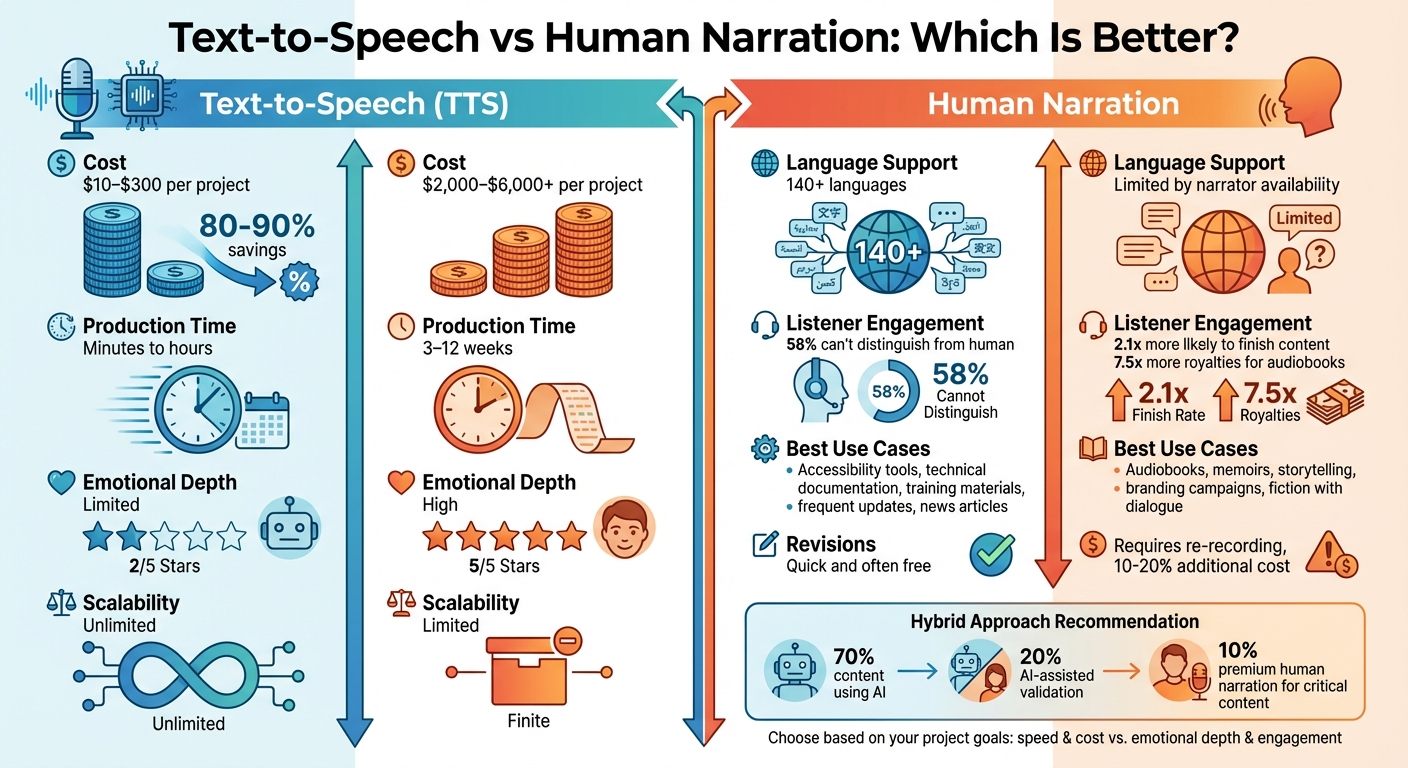
Choosing between **text-to-speech (TTS)** and **human narration** depends on your goals: speed and cost versus emotional depth and listener engagement. TTS is fast, scalable, and budget-friendly, making it ideal for projects like technical content, training materials, or accessibility tools. Meanwhile, human narration offers emotional nuance and performance, perfect for audiobooks, storytelling, or branding campaigns.
### Key Highlights:
- **TTS Pros**: Produces audio in minutes, costs $10–$300 per project, and supports over 140 languages.
- **Human Narration Pros**: Delivers emotional depth, increases listener engagement, and generates 7.5x more royalties for audiobooks.
- **Costs**: Human narration ranges from $2,000–$6,000 per project, while TTS costs are 80–90% lower.
- **Production Speed**: TTS completes audio in hours; human narration takes 3–12 weeks.
- **Scalability**: TTS handles large-scale projects effortlessly; human narration is limited by time and availability.
### Quick Comparison:
| Factor | Text-to-Speech (TTS) | Human Narration |
| --- | --- | --- |
| **Cost** | $10–$300 | $2,000–$6,000+ |
| **Production Time** | Minutes to hours | 3–12 weeks |
| **Emotional Depth** | Limited | High |
| **Scalability** | Unlimited | Limited |
| **Best For** | Accessibility, technical content, updates | Audiobooks, storytelling, branding |
For most projects, a **hybrid approach** — using TTS for efficiency and human narration for high-impact content — provides the best balance between cost, quality, and engagement.
## Human vs. AI: Who Should Narrate Your Audiobook in 2025?
## What Is Text-to-Speech Technology?
Text-to-speech (TTS) technology transforms digital text — like documents, web pages, or scripts — into spoken audio. Over the years, it has progressed significantly, moving beyond the monotone, robotic voices of the past. Thanks to neural TTS systems powered by deep learning, modern speech synthesis now delivers audio that sounds almost indistinguishable from a human voice.
The process of TTS involves three main steps. First, the system cleans and normalizes the input text, handling tasks like expanding abbreviations (e.g., turning "Dr." into "Doctor") and converting numbers into words. Next, it performs linguistic analysis, breaking the text into phonemes and assigning stress, intonation, and pauses. Finally, an acoustic model generates a representation of the speech, which a vocoder then converts into sound.
> "You can't have somebody producing a new audio version of one article every time it's updated. But with synthetic language, there's hardly any additional cost to production at all." – Andy Webb, Head of Product for Voice and AI, BBC
### Core Features of TTS
Modern TTS systems excel in handling complex linguistic nuances, providing accurate pronunciation and maintaining consistent, high-quality audio output. They can resolve tricky issues like distinguishing between homographs — such as "read" (present tense) and "read" (past tense) — while ensuring a stable "house voice" across different sessions.
Another key strength is speed. TTS generates audio almost instantly, making it ideal for real-time applications like conversational interfaces or quick content updates. For example, platforms like [TTSBuddy](https://ttsbuddy.com/) support over nine languages and offer a library of more than 50 voices, allowing users to choose options that align with their specific needs. [TTSBuddy](https://ttsbuddy.com/) also includes tools like Web Buddy for voice-based website interaction, Doc Buddy for converting documents into audio, and Offline Buddy for accessing content without an internet connection. An upcoming API Buddy feature is designed to handle large-scale text-to-audio conversions for enterprise projects.
### Benefits of TTS
TTS technology overcomes many limitations of traditional human narration. It offers unmatched scalability, enabling the creation of extensive audio libraries — such as entire collections of articles or training modules — without the delays associated with recording sessions. This is especially valuable given that 73% of content teams struggle to keep materials updated.
Another major advantage is cost. Hiring a professional voice actor to narrate a 750-word article can cost around $749. In contrast, TTS requires only a software subscription or a usage-based API fee, making it a far more budget-friendly option.
TTS also plays a critical role in accessibility. It benefits the estimated 2.2 billion people worldwide with vision impairments or low vision, as well as individuals with dyslexia, cognitive challenges, or limited literacy skills. Beyond accessibility, TTS can be a valuable tool for students and content creators. By listening to their work read aloud, they can catch errors in flow, tone, and structure that might be overlooked during visual proofreading.
These advantages highlight why TTS is increasingly being compared to traditional human narration for a range of use cases.
## Why Human Narration Still Matters
While text-to-speech (TTS) technology is fast and scalable, it falls short when content demands emotional depth and contextual nuance. Human narration isn't just about sounding natural — it's about delivering a performance. A skilled narrator brings life, emotion, and meaning that machines can't fully replicate.
> "The narrator understands not just the definition of the words they're saying, but the emotion and history behind them. They know the difference between a sigh of relief and a sigh of resignation." – Eric Hal Schwartz, Contributor, TechRadar
This ability to deliver nuanced performances makes human narration stand out. For example, audiobooks narrated by humans generate, on average, 7.5 times more royalties compared to AI-narrated ones. Moreover, listeners are 2.1 times more likely to finish an audiobook when the narration is emotionally engaging rather than robotic. A 2024 survey found that 67% of content creators prioritize "naturalness" over cost or features when choosing narration methods.
### Emotional Expression and Natural Delivery
Human narrators excel at capturing the subtle emotional undertones that AI struggles to convey authentically. Imagine an author narrating their own memoir — when their voice trembles during a painful memory, it creates an intimacy that synthetic voices simply cannot achieve. Professional narrators also use pacing, tone, and pauses to highlight meaning. For instance, videos with emotionally expressive narration hold viewers' attention 34% longer than those with monotone delivery.
While modern TTS systems can simulate emotions using tags like [whispering] or [angry], they often miss the deeper context. Even the most advanced AI can produce rhythm or tone inconsistencies that feel unnatural to listeners. Human narrators, on the other hand, bring an intuitive understanding of emotional nuance, creating a more immersive experience.
### Adjusting to Different Content Types
Another key strength of human narrators is their ability to adapt their delivery to match the specific needs of different content. For children's stories, they use playful tones and dynamic pacing to keep young listeners engaged. In thrillers or romance novels, they build tension and excitement through dramatic timing and distinct character voices. Memoirs, on the other hand, benefit from the authenticity and personal connection that only a human voice can provide.
> "Human narrators bring life experience, expression, and emotional nuance... [they] are better equipped to pick up on idioms, tone shifts, and culturally appropriate phrasing." – LanguageLine
This adaptability is especially important for complex narratives with multiple perspectives or unreliable narrators, where tone and subtext play a critical role. Professional voice actors can adjust their delivery, improvise, and respond to direction, ensuring the narration aligns perfectly with the content's intent. They also handle idioms, cultural references, and regional accents with a level of understanding that AI often misinterprets. For high-stakes projects like bestselling novels or premium marketing campaigns, human narration continues to set the standard, offering a level of artistry and emotional connection that justifies the investment.
## TTS vs Human Narration: Side-by-Side Comparison
Text-to-speech (TTS) technology and human narration each bring their own advantages and challenges. Deciding between them depends on your priorities — whether it's cost, emotional depth, or production speed.
AI narration can reduce recording expenses by **80%–90%**, making it a highly cost-effective option. On the other hand, human narrators bring a level of emotional resonance that translates into **7.5 times more royalties**. This highlights the trade-off between efficiency and the immersive experience only humans can deliver.
> "One version delivers information. The other creates experience." – Roy Samuelson, Audio Description Performer
Interestingly, studies reveal that **58% of listeners** now struggle to differentiate AI-generated voices from human ones. While TTS technology has improved dramatically, it still falls short in capturing the subtle nuances — like pauses, tone shifts, and emotional depth — that human narrators naturally convey.
Here's a closer look at how TTS and human narration compare across key factors:
### Comparison Table
| Factor | Text-to-Speech (TTS) | Human Narration |
| --- | --- | --- |
| **Voice Naturalness** | Clear and stable; may sound robotic in long segments | Natural rhythms, intentions, and breathing |
| **Emotional Expression** | Improving, but struggles with humor and subtle subtext | High; evokes empathy and handles micro-expressions |
| **Cost** | $10–$300 per project; far cheaper than human | $2,000–$8,000+ per project |
| **Production Speed** | Minutes to hours | 3 to 12 weeks |
| **Scalability** | Unlimited and instant | Limited by narrator availability |
| **Accessibility** | High; ideal for low-budget projects | High; fosters inclusivity and belonging |
| **Revisions** | Quick and often free | Requires re-recording and additional costs |
Both options have their place, depending on the goals of your project. Whether you prioritize affordability or emotional impact, understanding these differences helps you make the right choice for your audience.
## Cost and Scalability Analysis
### Price Comparison
The cost difference between AI narration and human voice work is striking. For an 80,000-word audiobook — approximately 8 to 9 hours of finished audio — human narration typically ranges from **$2,400 to $6,000 or more**. In contrast, the same project using AI narration costs only **$40 to $250**. Professional human narrators charge between **$0.03 and $0.08 per word**, while AI narration often costs less than **$0.001 per word**. For example, TTSBuddy offers a premium plan at just **$15 per million characters**, making it an incredibly cost-efficient option.
In addition to the narrator's fee, human production comes with extra costs. These often include hiring a **voice director** ($200–$600), a **proofing service** ($150–$400), and a **pronunciation consultant** for technical or specialized content ($100–$300). Re-recordings, often necessary, can increase total expenses by **10% to 20%** due to studio and session fees. On the other hand, AI narration allows for near-instant revisions, usually included within the standard pricing structure.
> "The cost ratio runs between 10:1 and 30:1 in favor of AI narration." – Narration Box
While cost savings are a major factor, the ability to scale production quickly is equally transformative.
### Scaling and Production Speed
AI narration doesn't just save money — it also drastically reduces production time. Converting a **70,000-word manuscript** to audio with AI takes **less than an hour**, compared to the **6-to-12-week timeline** required for human narration. Human production involves about **3.5 hours of recording and editing** for every finished hour of audio. This efficiency enables independent authors to release **3 to 7 times more titles per year**, cutting production timelines from weeks to mere hours.
AI narration is especially useful for large-scale projects like web accessibility and educational content. For instance, it can generate **100 e-learning voice clips in just minutes**, a process that would take days with human narrators. Additionally, AI supports global expansion effortlessly, offering **140+ languages and regional accents** without requiring separate voice actors for each market.
> "You can't have somebody producing a new audio version of one article every time it's updated. But with synthetic language, there's hardly any additional cost to production at all." – Andy Webb, Head of Product for Voice and AI, BBC
This combination of speed and global reach makes AI narration an invaluable tool for scaling content across diverse markets efficiently.
## When to Use TTS or Human Narration
Choosing between AI-generated text-to-speech (TTS) and human narration depends on factors like content type, budget, and audience expectations. It's about striking a balance between cost and speed versus emotional depth and context. Both approaches offer unique advantages for increasing accessibility and audience engagement.
### Best Uses for TTS
AI narration is all about efficiency, scalability, and consistency. For instance, news outlets leverage TTS to deliver audio versions of breaking stories almost instantly. As BBC's Andy Webb highlighted, synthetic voices remove the need to re-record audio every time an article is updated.
TTS is especially practical for technical documentation and training materials, where frequent updates are common. You can simply edit the text and regenerate audio without the hassle of a full re-recording. This makes it ideal for software tutorials, compliance training, and interactive voice response (IVR) systems.
Long-form content, like audiobooks exceeding 100,000 words, also benefits from TTS. It ensures consistent voice quality over lengthy recordings, something human narrators might struggle with due to voice fatigue. With premium TTS plans, entire backlists of manuscripts can be converted into audio cost-effectively. Plus, with support for 9+ languages and over 50 voice options, TTS enables global reach without hiring multiple voice actors.
Accessibility is another area where TTS shines. Tools like TTSBuddy's Chrome extension and offline audio options make it easier for users to consume web content and documents in ways that suit their needs.
However, for content that demands emotional storytelling, human narration remains the better choice.
### Best Uses for Human Narration
When emotional depth and authenticity are critical, human narration takes center stage. Fiction with intricate dialogue, multiple perspectives, or rich emotional layers is best served by a skilled human voice actor. Similarly, memoirs and personal stories gain an intimate touch when narrated by the author or a professional who can capture their essence.
Human narration also excels in high-stakes branding and storytelling. For flagship campaigns or sonic branding, a warm, personal voice can resonate far more effectively with audiences. As Ernst-Jan Pfauth, CEO of [The Correspondent](https://thecorrespondent.com/), put it:
> "With audio, it's even more personal than text, and we see more opportunities there because it's a more intimate way of consuming journalism."
Many publishers now adopt a hybrid approach, often referred to as the "10% premium rule." They reserve human narration for their top-performing titles and bestsellers, while relying on AI narration for the rest of their catalog.
## Conclusion: Choosing the Right Option
Based on the comparisons outlined earlier, the best choice ultimately depends on how well your project's goals align with the advantages of each approach.
AI narration is a cost-effective option. For instance, a typical non-fiction audiobook narrated by a human can cost anywhere from $2,000 to $7,000. In contrast, AI voice-over services usually fall between $10 and $50 per project. This makes AI a practical choice for those working within tight budgets.
When it comes to large-scale or time-sensitive audio production — think technical content or frequent updates — text-to-speech (TTS) technology stands out. However, for projects where emotional nuance is critical, such as memoirs, literary fiction, or high-profile branding campaigns, human narration remains unmatched.
Accessibility is another important factor to consider. TTS plays a vital role in supporting the 2.2 billion people worldwide living with visual impairments, as well as individuals with dyslexia or ADHD. Tools like TTSBuddy, which offer a Chrome extension, offline audio options, and support for over nine languages, simplify accessibility without the logistical hurdles of managing human narrators.
Many creators are now blending both methods. A popular approach is the "70-20-10" model: 70% of content is produced using AI, 20% is validated with AI assistance, and the top 10% — the most critical or nuanced material — receives full human narration. This hybrid strategy balances efficiency with quality. As Andy Webb from the BBC pointed out:
> "You can't have somebody producing a new audio version of one article every time it's updated. But with synthetic language, there's hardly any additional cost to production at all."
Ultimately, the decision boils down to your project's priorities. Whether your focus is on saving costs, delivering emotional depth, speeding up production, or improving accessibility, aligning your needs with the strengths of each method will guide you to the right choice.
## FAQs
### How do I choose between TTS, human narration, or a hybrid?
Choosing the right voice solution — **TTS (Text-to-Speech)**, **human narration**, or a **hybrid approach** — comes down to your goals, budget, and the emotional tone you want to convey.
- **TTS** works best for projects that need scalability and cost-efficiency, such as training modules or accessibility tools. Modern TTS voices sound natural and can handle large volumes quickly.
- **Human narration** shines when the goal is to evoke emotion or deliver a premium storytelling experience. It offers a level of authenticity and depth that's hard to replicate.
- A **hybrid approach** blends the strengths of both: using TTS for high-volume tasks while reserving human narration for sections that require a personal, nuanced touch.
Each option has its place, so the choice depends on what your project demands most.
### Will listeners notice if I use AI text-to-speech?
Modern AI text-to-speech systems are so advanced that they sound incredibly natural and realistic. In fact, most people can't tell the difference between an AI-generated voice and a human one unless they listen closely or actively look for subtle cues. That said, human voices still tend to be the go-to choice for content that requires emotional depth or storytelling, as they bring a level of connection and sincerity that's hard to replicate. Even so, AI voices serve as a practical and convincing option for many applications.
### What should I consider before using TTS for accessibility?
When incorporating **text-to-speech (TTS)** for accessibility, pay close attention to the **voice quality**. It should sound natural, articulate clearly, and convey some level of emotional expression to ensure a better listening experience. Make sure the technology complies with accessibility standards, such as [WCAG](https://www.w3.org/WAI/standards-guidelines/wcag/) guidelines, to meet the needs of all users. Transparency is also key — let your audience know when TTS is being used to maintain their trust.
Keep in mind that TTS often lacks the emotional depth of a human narrator. Because of this, it's important to assess whether it aligns with your audience's preferences and works well for your specific use case.
---
## TTS Buddy: Talk to Web Pages with Ease
URL: https://ttsbuddy.com/blog/tts-buddy-talk-to-web-pages
Markdown: https://ttsbuddy.com/blog/tts-buddy-talk-to-web-pages.md
In today's fast-paced digital age, accessibility and convenience are vital for efficient content consumption. Many of us struggle to find time to read lengthy articles, whether due to multitasking, accessibility needs, or simply the challenge of staying focused. Enter **TTS Buddy**, a transformative browser extension that enables users to interact with web pages in a seamless, conversational manner. By turning text into natural-sounding voices, TTS Buddy ensures that engaging with digital content is easier than ever before.
This article explores how TTS Buddy empowers users, especially individuals with accessibility needs, ADHD, or busy schedules, to reimagine their browsing experience. Let's dive into how it works, who it benefits, and why it's a game changer.
## What Is TTS Buddy and How Does It Work?
[TTS Buddy](https://ttsbuddy.com/) is a Chrome extension designed to revolutionize the way users interact with online content. Instead of passively reading through dense web pages, users can listen to a natural, human-like voice speaking the text aloud. But TTS Buddy doesn't stop there - it takes accessibility and engagement to a whole new level by allowing users to "talk" to a web page as though it were a real person.
Here's how it works in a few simple steps:
1. **Install and Set Up**: After downloading the Chrome extension, users can easily pin TTS Buddy to their browser for quick access.
2. **Enable Microphone Access**: Granting microphone permissions allows the extension to process voice commands and create a more interactive experience.
3. **Choose a Voice Character**: TTS Buddy offers six unique voice options, enabling users to customize the tone and style of their interaction.
4. **Engage in Conversation**: By selecting a voice and starting the extension, users can listen to any webpage, turning static text into a lively, personalized conversation.
This intuitive functionality makes it easy for anyone to transform their browsing routine into a dynamic and accessible experience.
## Revolutionizing Accessibility and Productivity
For individuals with visual impairments, ADHD, or other accessibility needs, reading web pages can often feel like an overwhelming task. The dense structure of articles, small font sizes, and the sheer volume of text can create barriers to comprehension and engagement. TTS Buddy breaks down these barriers by enabling users to consume content audibly, which can aid focus, comprehension, and multitasking.
Moreover, TTS Buddy isn't just for those with accessibility challenges. It's a powerful tool for tech-savvy professionals, students, and multitaskers who value productivity and convenience. Whether you're studying on the go, absorbing industry updates during your commute, or catching up on articles while cooking dinner, TTS Buddy makes it possible to stay informed without the need to sit down and read.
## Personalization at the Core
One of TTS Buddy's standout features is its ability to adapt to the user's preferences. With **six voice characters to choose from**, users can select a tone that resonates with them - whether that's a calming, conversational voice or a more dynamic and energetic one. This personalization not only enhances the user experience but also fosters a sense of connection with the content.
By turning web pages into conversational partners, TTS Buddy meets users where they are. It creates an inclusive digital space that's as engaging as it is practical.
## Who Benefits Most From TTS Buddy?
TTS Buddy is designed for anyone who values an efficient, accessible way to consume online content. Here's a closer look at who stands to gain the most:
- **Individuals with Visual Impairments**: TTS Buddy provides an audio-based alternative to reading, ensuring inclusivity and accessibility.
- **People with ADHD**: Listening to content aloud can help maintain focus and reduce the cognitive load of processing dense text.
- **Busy Professionals**: Multitasking becomes easier when you can listen to important articles and updates while juggling other tasks.
- **Students**: Studying complex materials becomes less daunting when they're presented in an engaging, conversational format.
- **Tech Lovers**: For those who enjoy adopting innovative tools, TTS Buddy offers a fresh approach to consuming information.
## How TTS Buddy Stands Out
While text-to-speech (TTS) technology isn't new, TTS Buddy distinguishes itself by combining natural-sounding voices with interactive functionality. It's not just about listening - it's about **engaging**. Traditional TTS tools often feel robotic and impersonal, but TTS Buddy's customizable voice options create a personalized experience that feels human.
Additionally, its simplicity sets it apart. With minimal setup and an intuitive user interface, TTS Buddy ensures that even non-tech-savvy users can get started quickly.
## Key Takeaways
- **Interactive Browsing**: TTS Buddy transforms web pages into interactive, conversational content for a more engaging experience.
- **Accessible for All**: Ideal for individuals with visual impairments, ADHD, or other accessibility challenges, enabling them to consume content effortlessly.
- **Productivity Booster**: Busy professionals and multitaskers can stay informed while performing other tasks.
- **Personalization Options**: Six unique voice characters ensure users can customize their experience to match their preferences.
- **Easy to Use**: With quick installation and a straightforward interface, TTS Buddy is accessible to everyone.
- **Multitasking Made Simple**: Listen to articles during your commute, workout, or while cooking dinner, making the most of your time.
## A New Era of Digital Engagement
TTS Buddy represents more than just a tool - it's a shift toward more accessible, user-friendly technology that caters to diverse needs. By turning web pages into conversational partners, it empowers users to access information in a way that fits their lifestyle. Whether you're looking to enhance productivity, overcome accessibility barriers, or simply make browsing more enjoyable, TTS Buddy is a remarkable ally in today's digital landscape.
As we continue to prioritize inclusivity and convenience, tools like TTS Buddy remind us of the power of innovation in simplifying our lives. So, step into the future of browsing - your web pages are ready to talk.
**Source: "TTS Buddy Chrome Extension Promo" - [TTS Buddy](https://www.youtube.com/channel/UCJ4GHqPYi8t9NeIhjI7ZhzQ), YouTube, Aug 4, 2025 - [https://www.youtube.com/watch?v=Lr850e52_qQ](https://www.youtube.com/watch?v=Lr850e52_qQ)**